Simple Virtual Tabletop
A downloadable tool for Windows
An open-source tabletop miniature simulator made in Godot. A lot more limited than comparable paid software like Tabletop Simulator, but this one is free and (if you know how to use Godot) you can modify it however you want!
If you fork this software, please credit me - either as ProfessionalAttackEnby games and/or Ian/Iana Spencer - as the creator of the original branch. If you have edits you want rolled into the main branch, talk to me about it AFTER you've tested to see if they work//
FEATURES:
- Place Miniatures and Floor tiles however you like
- Keyboard-shortcut focused interface
- Built-in virtual "Dice" that combine the digital convenience of RNG with the tactile feel and anticipation of a real dice roll
- Miniatures can be labeled
- Notepad for per-session temporary notetaking
- Open-source and made in Godot. If you're familiar with Godot, you can download the project file modify it however you want. You could even upload your fork elsewhere*
- No fluff, very utilitarian
*If you upload a fork of Simple Tabletop Simulator, credit me and link this itch.io page
//
INSTRUCTIONS:
- BASIC NAVIGATION: You can use WASD to move the overhead camera horizontally. You can zoom in by pressing the space bar and zoom out by pressing "Ctrl".
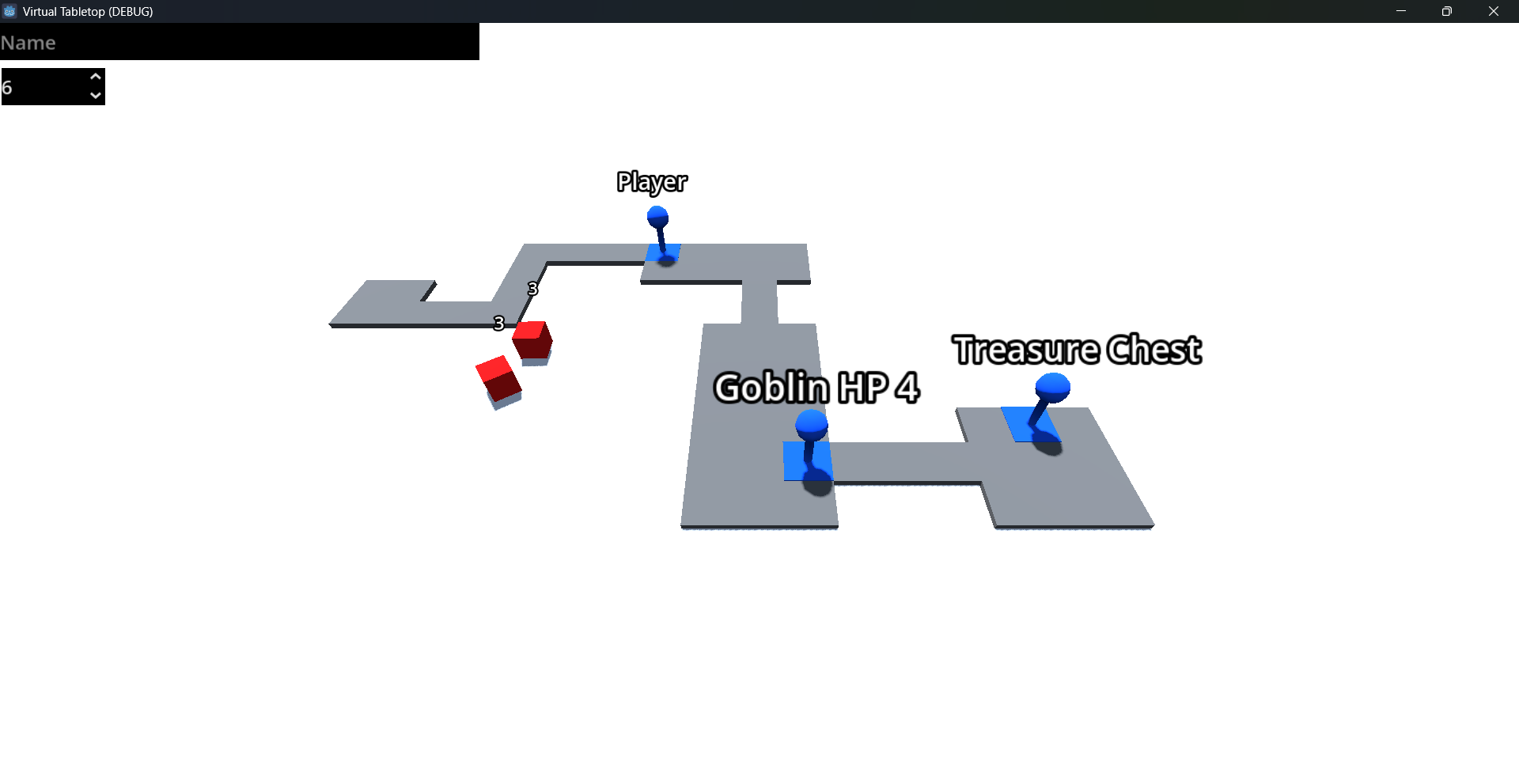
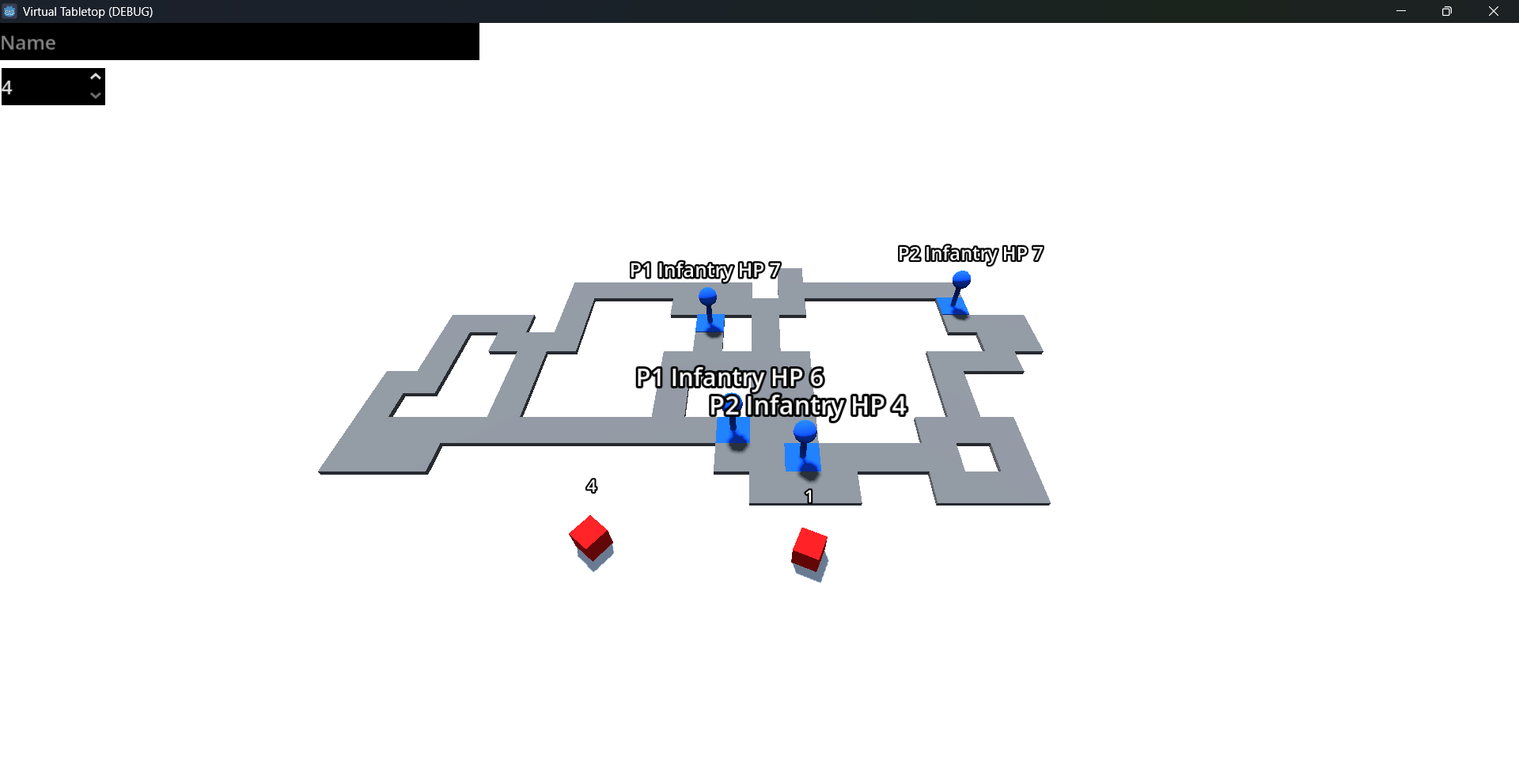
- You can place a new Miniature object by pressing "M" on your keyboard. It will be auto-selected. You can use Miniature objects to represent Player Character, NPCs, Enemies, interactable objects (such as chests) or anything in your world that isn't just terrain
- You can place a new Floor object by pressing "B" on your keyboard. This, too, will be auto-selected. You can use Floor objects to represent the ground the player can walk on, such as the shape of walkable terrain, the floor layout of a dungeon, etc
- You can left-click a Miniature or Floor object to make it Active. While these objects are active, you can press the arrow keys to move them by one increment (five-by-five foot space) in the corresponding direction. While a Miniature is active, you can change the overhead text by editing the text field in the top-left and pressing "Enter". "Enter" can also be used to quick-deselect all selected objects.
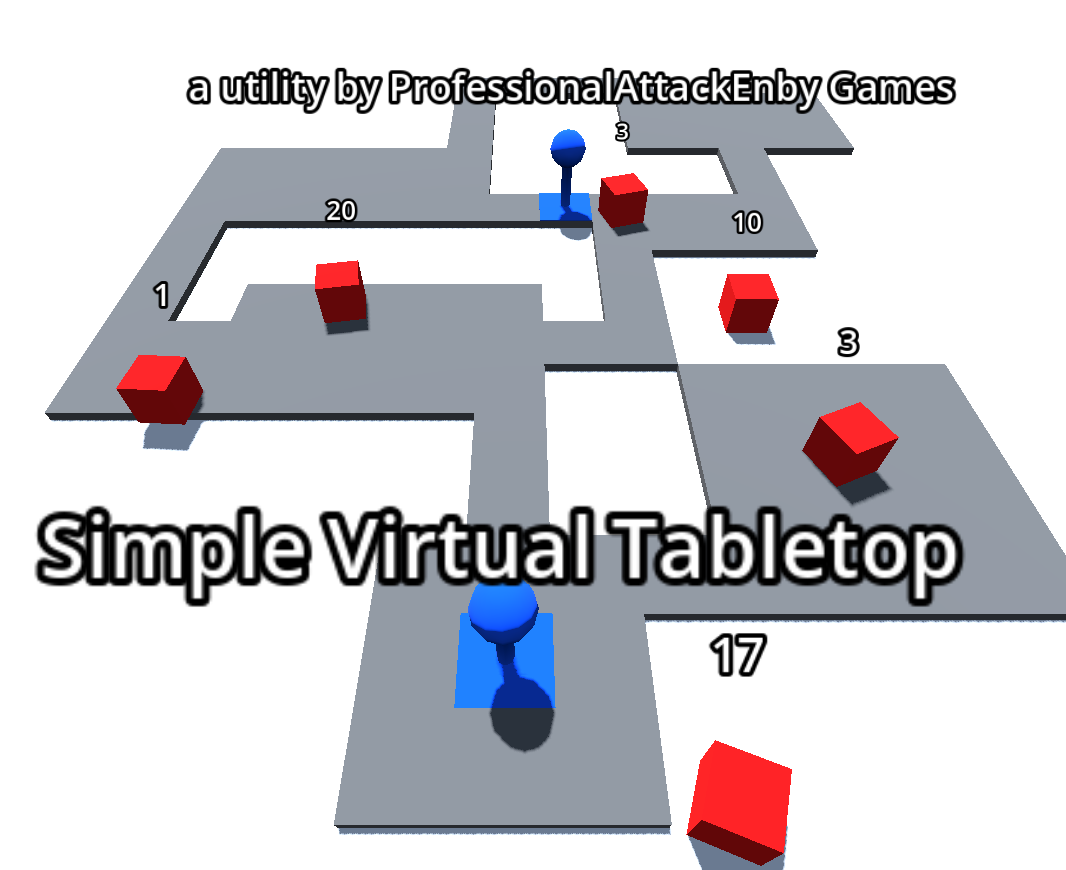
- Press "R" to spawn in a new Die object. You can "pick up" the dice object by left-clicking it, roll it around (if you wish) and left go off the Die. Allow the Die object to set untouched for a moment. After a few seconds, a number will appear (as text) over the Die object.
- In the top left corner of the screen, right below the text field labeled "name", there is a spinbox with a number in it ("6" by default) that changes in multiples of two (2). You can change the value of the box (either by manually typing in a multiple of 2 between 4 and 100, OR by using the "up and down" arrows on the spinbox). The value of present in the spinbox represent the imagined "sides" of the virtual Die object, in other words, the max value it can roll. The minimum is always one (1). Please note that the Die object will always appear as a cube to efficient Rigidbody simulation, and that you don't need to respawn the Die object for it to update, it always references whatever the current value is in the spinbox. Also, make sure to hit "enter" after typing a number so the Godot registers it, Godot's spinboxes work in a way that's a bit odd when typing in a number
- You can delete any object (Die, Floor or Miniature) by right-clicking it. This is useful if your session becomes too cluttered
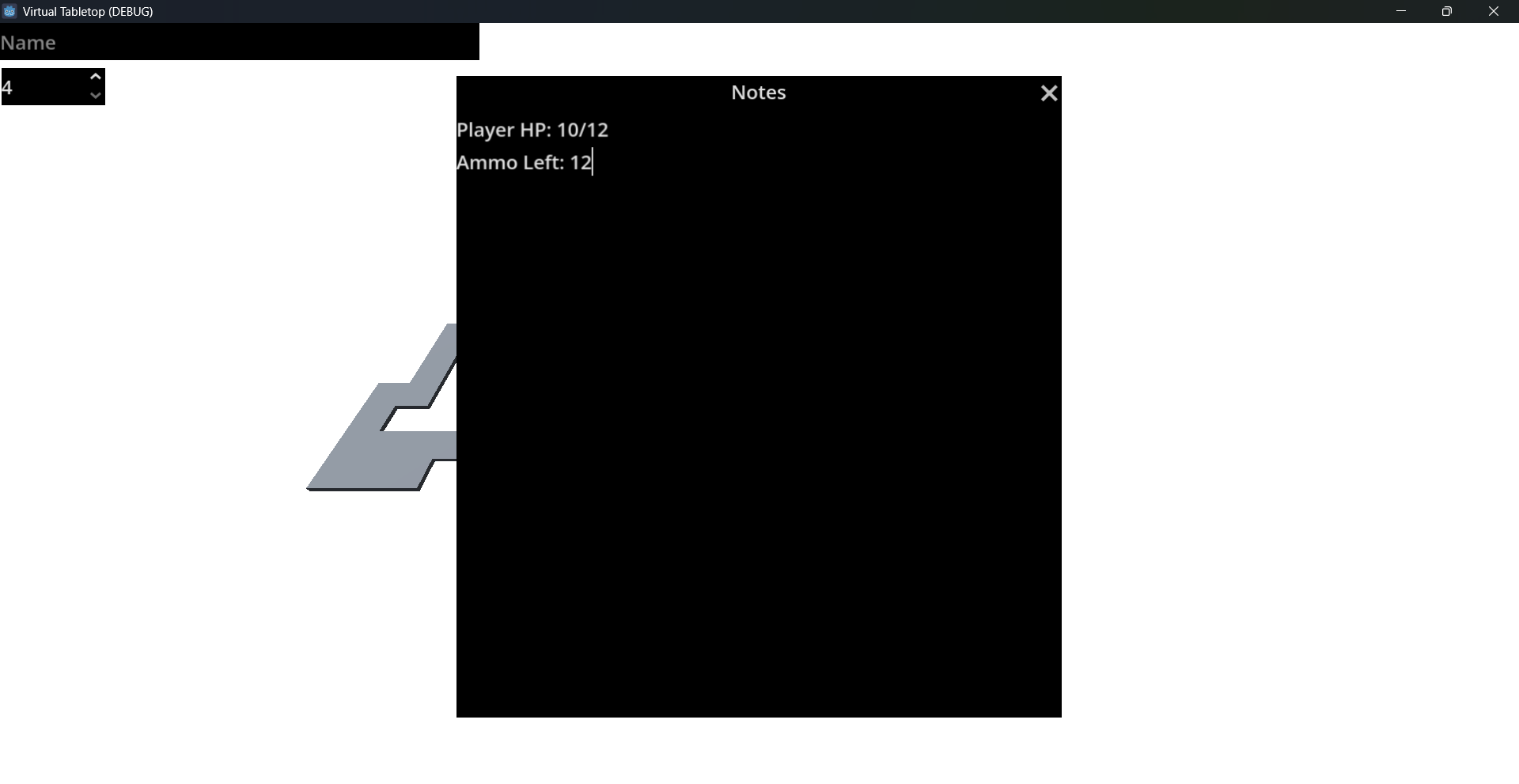
- You can press "N" to bring up the Notes Window. The Notes Window essentially allows you to temporarily jot down any information that may be useful later in the same session, which as writing down what calculations you need to do for a particular skill check. PLEASE REMEMBER: Simple Tabletop Simulator does NOT save your notes in the notes window, it is meant for per-session note taking. Copy any important information in a separate text document or physical paper if you're going to need it next session!
//
INSTRUCTIONS:
- BASIC NAVIGATION: You can use WASD to move the overhead camera horizontally. You can zoom in by pressing the space bar and zoom out by pressing "Ctrl".
- You can place a new Miniature object by pressing "M" on your keyboard. It will be auto-selected. You can use Miniature objects to represent Player Character, NPCs, Enemies, interactable objects (such as chests) or anything in your world that isn't just terrain
- You can place a new Floor object by pressing "B" on your keyboard. This, too, will be auto-selected. You can use Floor objects to represent the ground the player can walk on, such as the shape of walkable terrain, the floor layout of a dungeon, etc
- You can left-click a Miniature or Floor object to make it Active. While these objects are active, you can press the arrow keys to move them by one increment (five-by-five foot space) in the corresponding direction. While a Miniature is active, you can change the overhead text by editing the text field in the top-left and pressing "Enter". "Enter" can also be used to quick-deselect all selected objects.
- Press "R" to spawn in a new Die object. You can "pick up" the dice object by left-clicking it, roll it around (if you wish) and left go off the Die. Allow the Die object to set untouched for a moment. After a few seconds, a number will appear (as text) over the Die object.
- In the top left corner of the screen, right below the text field labeled "name", there is a spinbox with a number in it ("6" by default) that changes in multiples of two (2). You can change the value of the box (either by manually typing in a multiple of 2 between 4 and 100, OR by using the "up and down" arrows on the spinbox). The value of present in the spinbox represent the imagined "sides" of the virtual Die object, in other words, the max value it can roll. The minimum is always one (1). Please note that the Die object will always appear as a cube to efficient Rigidbody simulation, and that you don't need to respawn the Die object for it to update, it always references whatever the current value is in the spinbox. Also, make sure to hit "enter" after typing a number so the Godot registers it, Godot's spinboxes work in a way that's a bit odd when typing in a number
- You can delete any object (Die, Floor or Miniature) by right-clicking it. This is useful if your session becomes too cluttered
- You can press "N" to bring up the Notes Window. The Notes Window essentially allows you to temporarily jot down any information that may be useful later in the same session, which as writing down what calculations you need to do for a particular skill check. PLEASE REMEMBER: Simple Tabletop Simulator does NOT save your notes in the notes window, it is meant for per-session note taking. Copy any important information in a separate text document or physical paper if you're going to need it next session!
//
Download
Development log